

Scissor for Mac
Scissor for Mac is a native vector and pixel editor for macOS by Samal Studios. Draw with the Pen, shapes and type, edit photos as pixel layers, and open SVG, PDF, PSD and EPS files alongside the same .cut documents as Scissor on the web.
Requires macOS 26 Tahoe or later on a Mac with Apple silicon.
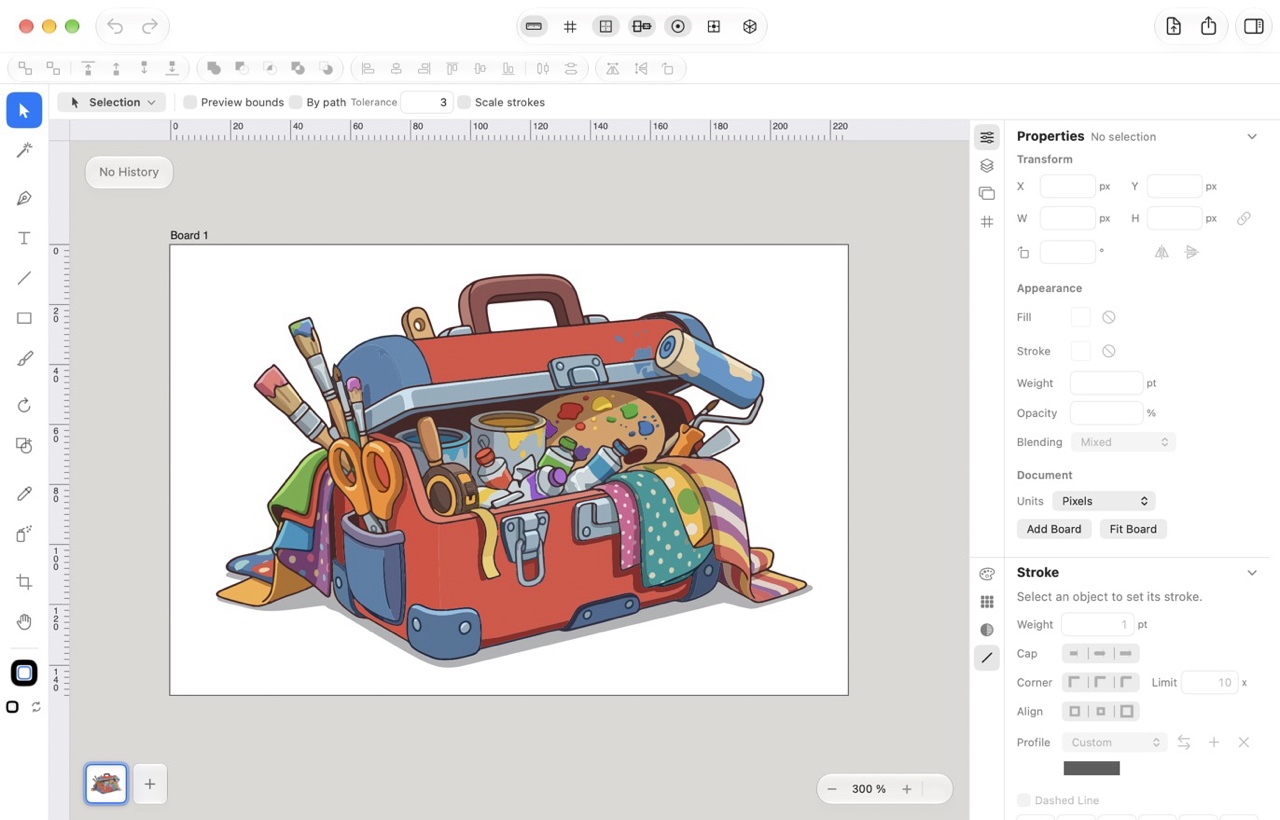
Paths and pixels, in one document.
Draw with the Pen and Curve tools, build live shapes whose corners stay editable, and set type in any font on your Mac. Open a photo and it becomes a pixel layer you can paint, retouch and mask beside your paths.
The tool rail follows your selection. On a pixel layer, the Paintbrush and Eraser switch to their pixel twins, and tools that only draw paths dim.
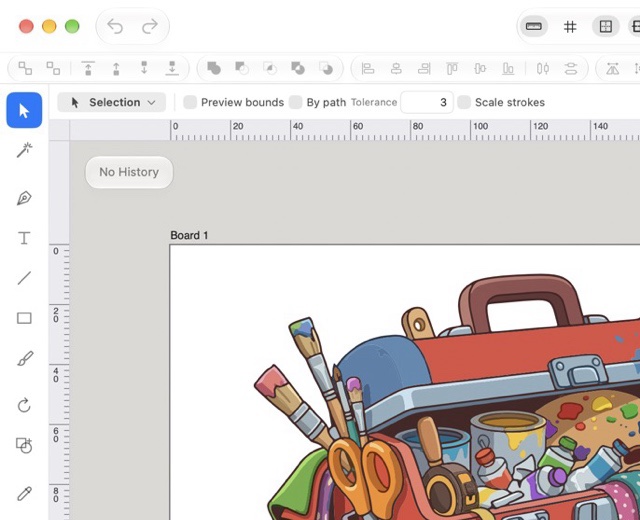
Vector drawing
- Pen and Curve
- Pencil and Paintbrush
- Live shapes
- Combine Shapes
- Gradients, including freeform
- Mesh and Morph
- Patterns and brushes
- Symbols
- Type on a path
- Warp
- 3D extrude and revolve
Pixel editing
- Brush and Pixel Eraser
- Paint Bucket
- Dodge, Burn and Sponge
- Marquee selections
- Layer masks
- Merge Down
- Desaturate and Invert
- Find Edges and Emboss
Native, down to the engine.
Scissor’s engine is written in Rust and compiled into native code that ships inside the app. There is no web view: the engine draws through Core Graphics, and Core Text sets your type.
Files open in the background, one at a time, and the canvas redraws only when something changes.
-
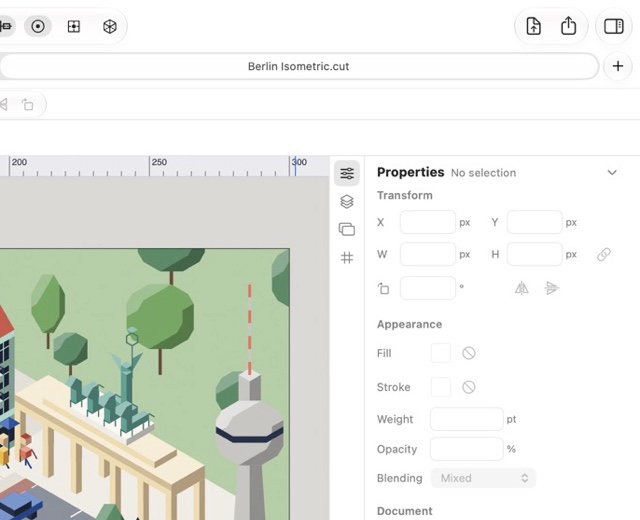
Tabs
Keep documents together as tabs in one window with Window › Merge All Windows, or let macOS open them as tabs.
-
Command palette
Press ⌘K to find any command, tool or panel by name and run it.
-
Find in Document
Press ⌘F to find objects, text, layers, boards, swatches and symbols.
-
Your shortcuts
Change any menu shortcut in Settings, and keep your own sets by name.
-
Saves as you work
Documents save themselves. Duplicate, Rename…, Move To… and Revert To are in the File menu.
-
Trackpad and Control-click
Pinch to zoom, swipe with two fingers to pan, and Control-click for commands on what’s under the pointer.
Opens the files you already have.
Open a picture, a PDF or a layered Photoshop file and Scissor makes a new document from it. The original stays as it was, and saving writes a .cut file wherever you choose.
| Kind | Formats | Opens as |
|---|---|---|
| Scissor documents | .cut |
The document itself, in the same format as Scissor on the web. |
| Pictures | PNG, JPEG, GIF, WebP, BMP, AVIF, HEIC, HEIF, TIFF and camera RAW | A pixel layer on a board the picture’s size, up to 67 megapixels. |
| Vector and print | SVG, SVGZ, PDF, EPS and .ai |
Editable artwork. Every page of a PDF becomes a board, and .ai files open through the PDF importer. |
| Layered artwork | PSD | Layers, layer groups, editable type and vector masks. |
Place and drop
File › Place… (⇧⌘P) or a drag onto the canvas brings a picture, SVG, PDF or EPS file into the open document, as one step you can undo.
Export
Export the active board as SVG, PNG (at 1×, @2x or transparent) or JPEG, the whole document as a PDF with a page per board, or chosen objects and slices at several scales from the Assets panel.
Community artwork, layer by layer.
The New File window (⌘N) has a Community tab of artwork made in Scissor and shared by its artists. Open a copy as a new document and see how it was built.
Shared pieces carry a CC BY 4.0 or CC0 licence, and the Library panel adds free artwork you can place in anything you make.
How to share your work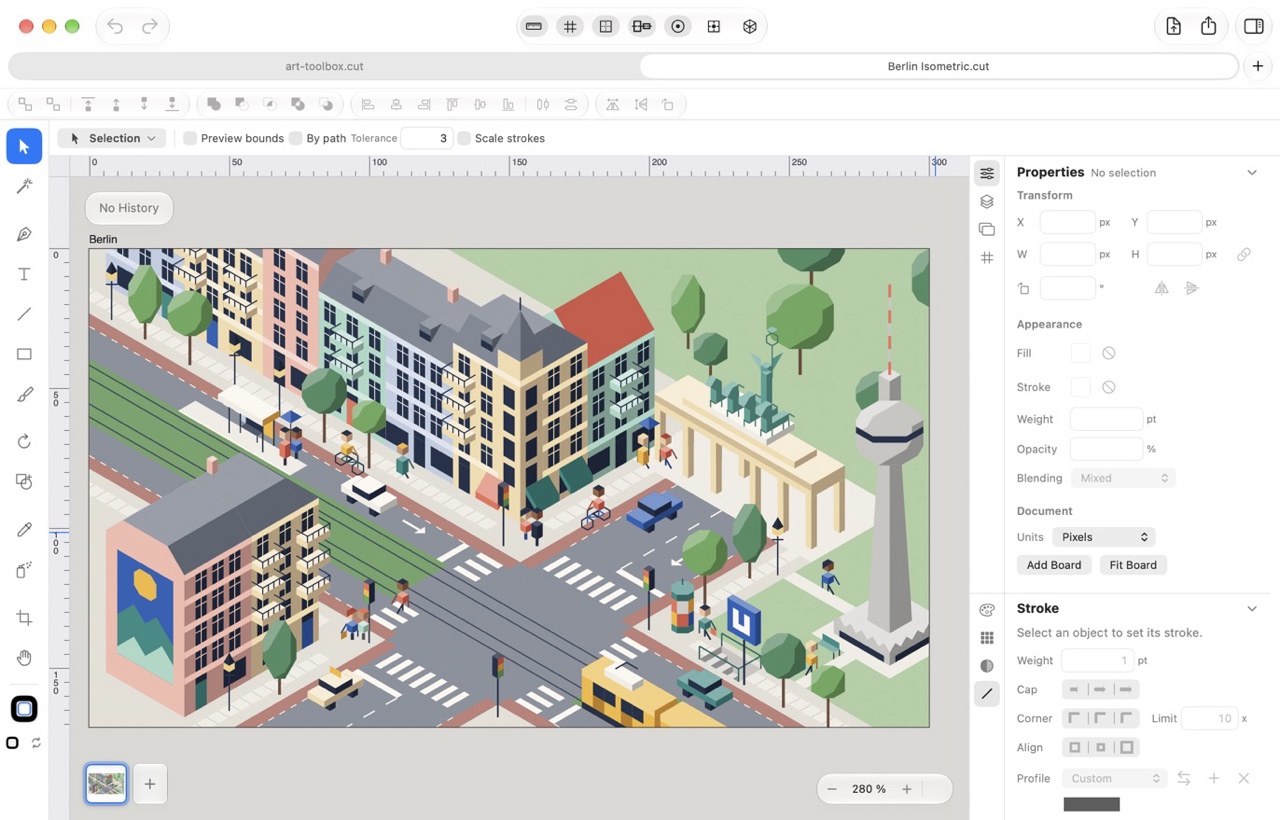
Your work stays on your Mac.
Scissor works offline. It goes online only when you open the Library panel or the Community tab, to fetch artwork from scissor.studio, and it never sends your documents anywhere.
How Scissor handles your data- No account and no sign-in
- No analytics, tracking or advertising
- No update or licence checks
- Sandboxed: it opens only the files you choose
Questions and answers
What does it cost?
The price is on Scissor’s Mac App Store page.
What do I need to run it?
A Mac with Apple silicon and macOS 26 Tahoe or later. You need an internet connection only for the Library panel and the Community tab.
Can I open files from Scissor on the web?
Yes. Both read and write the same .cut files, so a document opens in either one. The Mac app also opens pictures and SVG, PDF, PSD and EPS files.
Where can I get help?
The manual explains every tool, panel and menu. The support page covers system requirements and how to report a problem or suggest a feature.
Get Scissor for Mac.
Download it from the Mac App Store, or keep working in your browser. Your .cut files open in both.